Reschedule or amend a booking
Move an existing reservation without creating a duplicate.
- Where to go
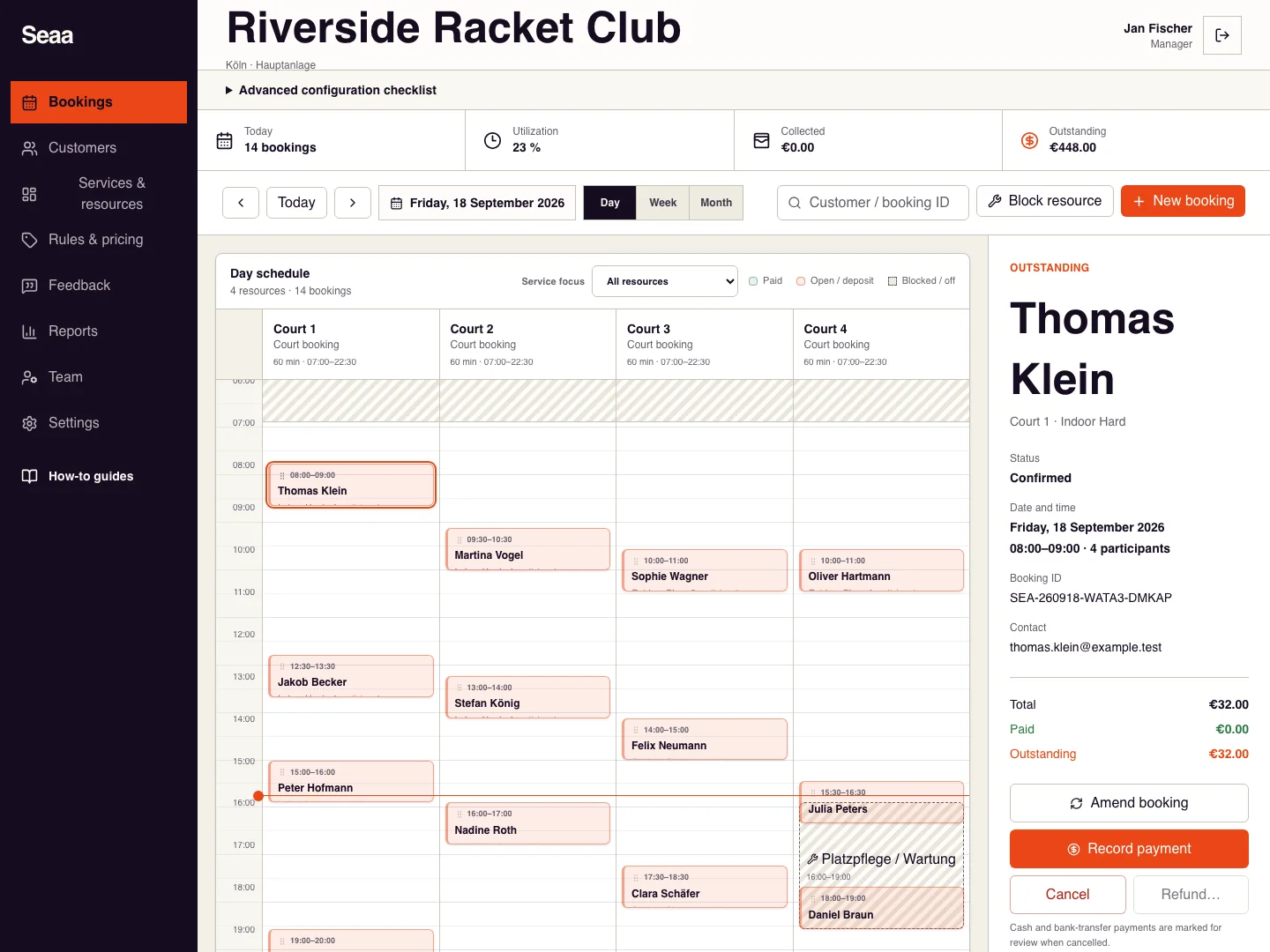
- Bookings → booking → Amend
- Access
- Staff with access to this section
 View full size
Step by step
Find the booking by date or customer and open its details. Confirm the booking identifier.
Choose Amend booking, then select the new resource, service, date, and start time. The chosen service or resource sets the duration.
Check the displayed session length and selected time, then Save amendment.
Check the new calendar position and booking details. Review customer notification delivery if the change is time-sensitive.
Check it worked
The same booking appears at its new time; the original slot is released.
Good to know
A conflict means another booking, closure, or rule blocks the new time. Choose an available alternative; do not duplicate the reservation.
Reviewed 20 September 2026. Screenshots use fictional demo data; available actions depend on your role and enabled features.