Help customers use their account
Explain customer sign-in, profile details, and booking access.
- Where to go
- Customer account
- Access
- Anyone; no business sign-in needed
 View full size
Step by step
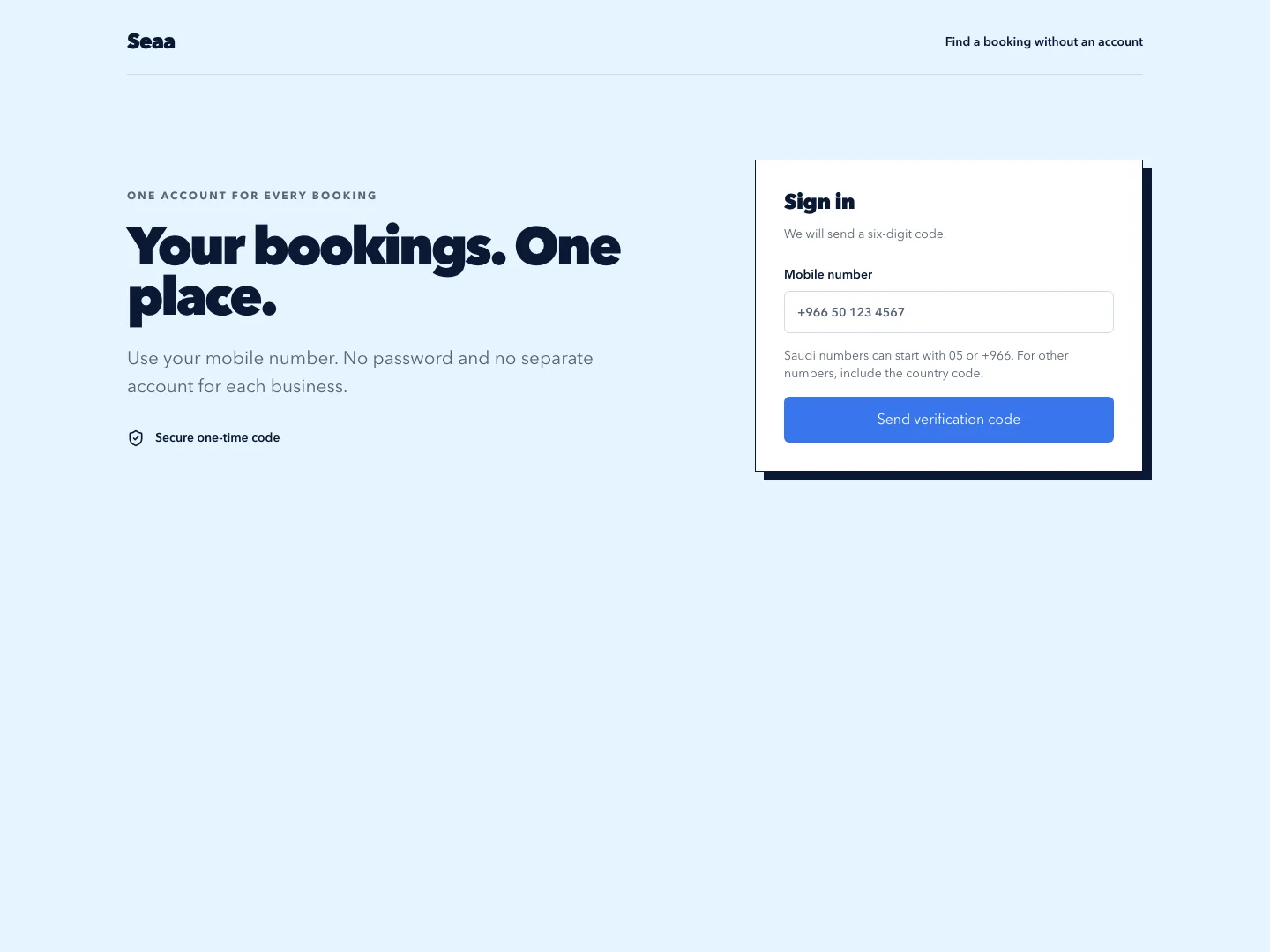
Open Customer account and sign in using the offered verification method and the identity associated with the booking.
Complete or correct the profile fields requested on the page, then save.
Review the available booking and membership information. Open the appropriate booking to see its current details and allowed actions.
If a booking is not listed, use its original private Manage booking link or the Manage booking lookup with the requested matching details.
Check it worked
The customer can reach the intended booking without receiving business management access.
Good to know
Changing a profile does not automatically replace contact details already saved on an existing booking.
Reviewed 20 September 2026. Screenshots use fictional demo data; available actions depend on your role and enabled features.