Invite staff and manage access
Send an invitation, assign a role, and remove access when needed.
- Where to go
- Team
- Access
- Owner or manager
 View full size
Step by step
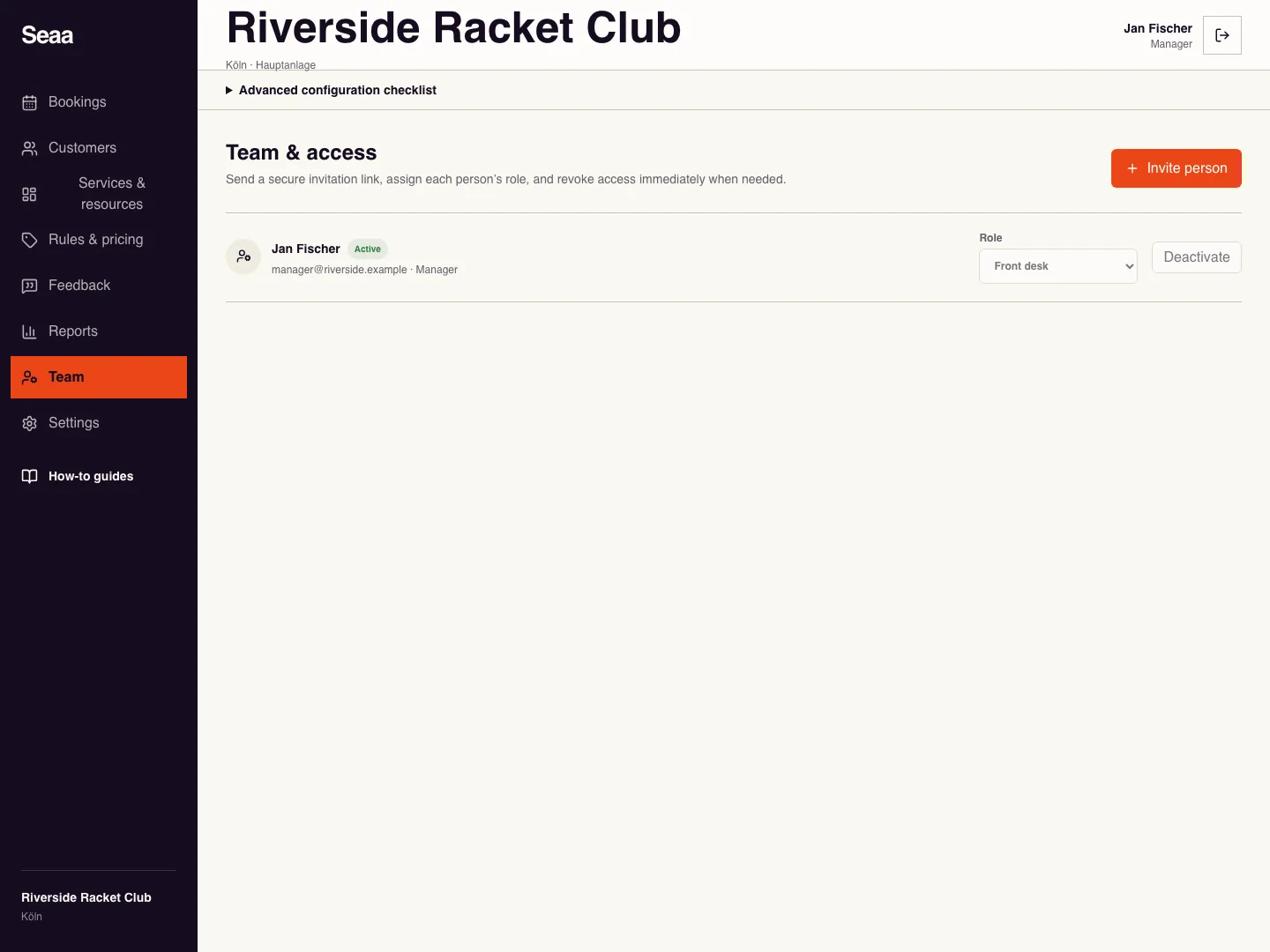
Open Team → Invite person. Enter the person’s name and exact email address.
Choose an available role that matches the work: management for configuration, front desk for daily bookings, or a more limited role when offered.
Create invitation link. Check delivery status and securely share the displayed link if needed. The recipient opens it and verifies the invited email before access activates.
Confirm the list changes from Invitation pending to Active. Use New link for an expired invitation, Revoke invite to cancel it, or Deactivate to remove existing access.
Check it worked
The staff member can open the intended workspace with the assigned role.
Good to know
A copied link alone does not activate access. The invited email must be verified, and your role limits which roles you can assign.
Reviewed 20 September 2026. Screenshots use fictional demo data; available actions depend on your role and enabled features.