Use the waitlist when a time is full
Help customers request an unavailable time and claim an offer.
- Where to go
- Customer booking page → unavailable time
- Access
- Anyone; no business sign-in needed
 View full size
Step by step
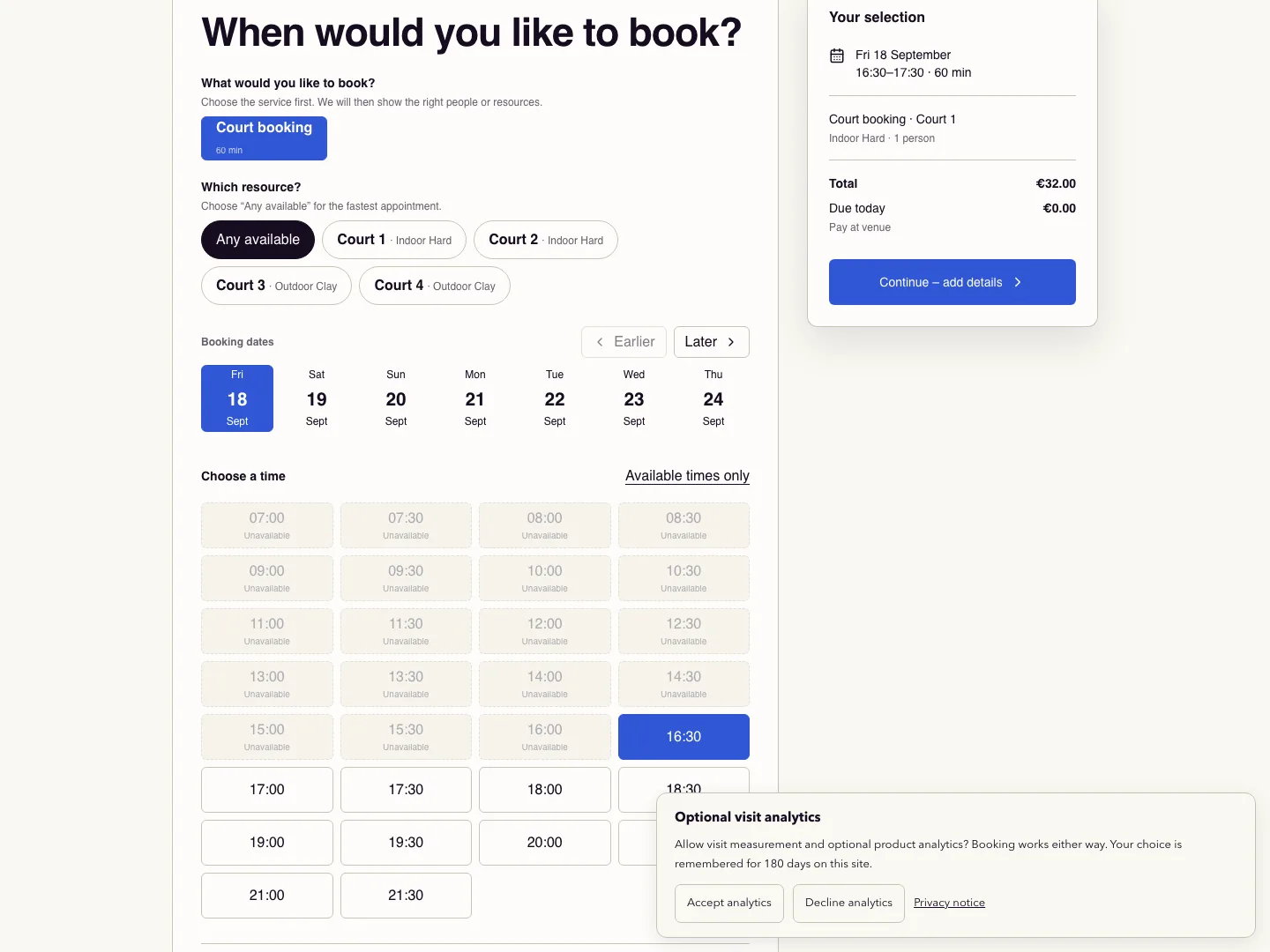
On the public booking page, choose the required date and enable Show unavailable times.
Select Join waitlist where offered and enter the requested customer contact details.
Watch for an offer message if a matching space opens. A waitlist entry itself does not reserve a slot.
Open the offer link before its deadline and finish the booking steps. Check for a booking confirmation after accepting.
Check it worked
Only a completed offer booking appears as a confirmed calendar reservation.
Good to know
An expired or already claimed offer cannot guarantee the time. Return to the booking page for current availability.
Reviewed 20 September 2026. Screenshots use fictional demo data; available actions depend on your role and enabled features.