Enable booking alerts and check delivery
Verify your alert email and follow customer-message delivery.
- Where to go
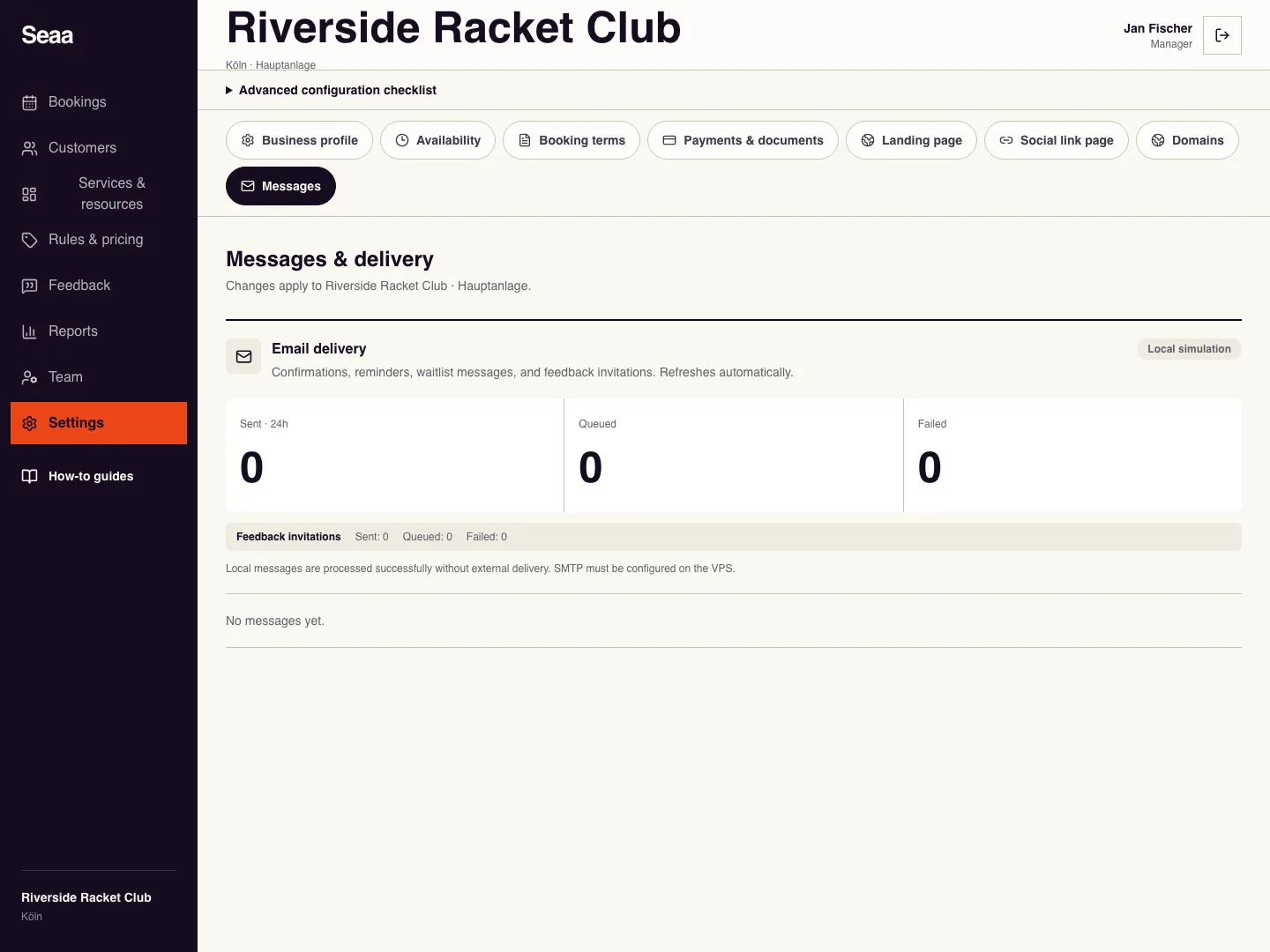
- Guided setup → launch; Settings → Messages
- Access
- Staff with access to this section
 View full size
Step by step
As an owner or manager, open the launch step of guided setup and find Receive booking alerts. Each responsible person sets up their own email.
Send the verification code to the displayed contact email. Enter the code from that inbox and enable alerts after verification.
Open Settings → Messages to review confirmations, changes, reminders, and waitlist delivery. Use Retry only for a failed message where the action is offered.
Complete a test booking and check the actual customer and responsible staff inboxes, including spam folders.
Check it worked
The right people receive the expected booking message and the delivery list shows its latest state.
Good to know
Queued or sent does not prove inbox receipt. Check the email address and verification state before retrying repeatedly.
Reviewed 20 September 2026. Screenshots use fictional demo data; available actions depend on your role and enabled features.