Test the customer booking journey
Follow the same steps your customers use to reserve and manage a time.
- Where to go
- Your published website → Book
- Access
- Anyone; no business sign-in needed
 View full size
Step by step
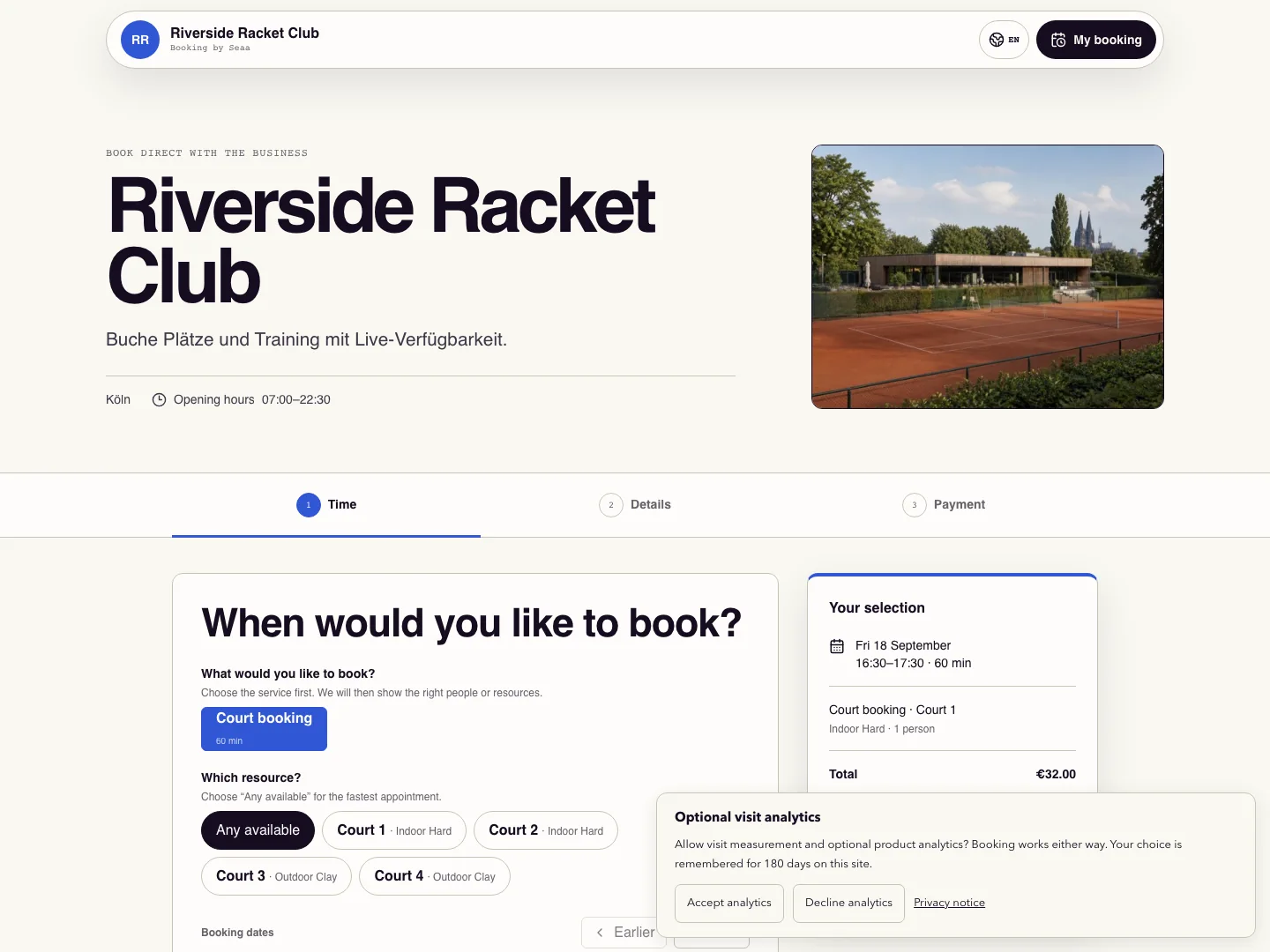
Copy your published booking address from Domains and open it in a private browser window.
Choose the service or resource, participants, date, and available time. Check duration and total, including any selected extension.
Continue to details, enter accurate contact information, and read and accept the booking terms.
Complete the displayed payment or pay-later step before the hold expires. Keep the confirmation and private Manage booking link.
Open Manage booking to review its timeline, eligible changes/cancellation, and documents. Check the business calendar and both inboxes to finish your test.
Check it worked
The confirmed booking appears in the business calendar with the same time and total.
Good to know
A selected time or temporary hold is not a confirmed booking. If checkout expires, select availability again.
Reviewed 20 September 2026. Screenshots use fictional demo data; available actions depend on your role and enabled features.