Use your free address or connect a domain
Find your public links and connect a domain you own when enabled.
- Where to go
- Settings → Domains
- Access
- Owner or manager
 View full size
Step by step
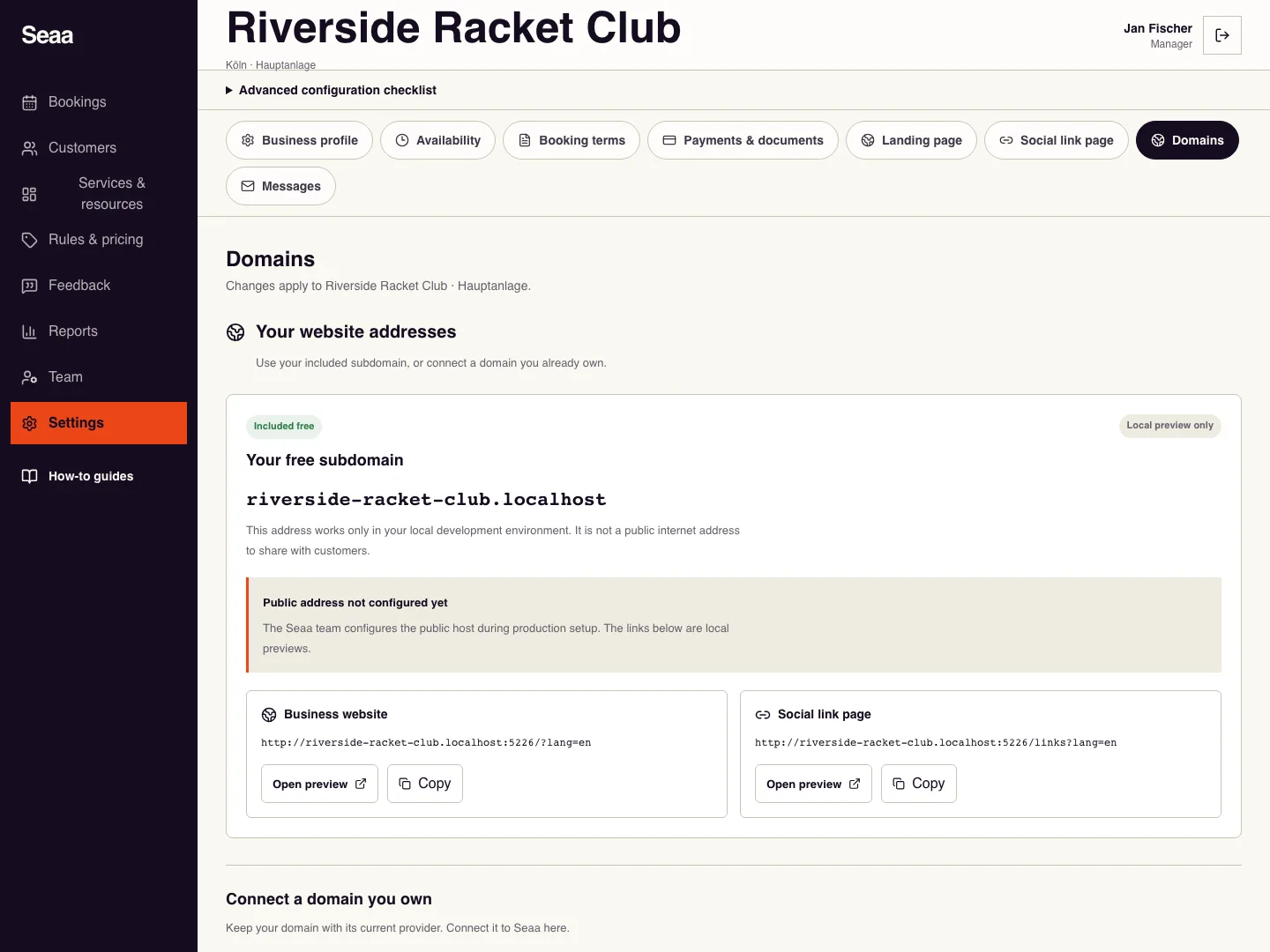
Open Domains. Your free address needs no purchase or DNS change. In Customize your free address, choose 3–40 English letters, numbers or single hyphens, starting and ending with a letter or number, then Save address. Previous addresses and QR codes keep working.
If custom domains are enabled, enter a hostname you own, such as booking.example.com, without https:// or a page path, then Connect.
At your domain provider, add the exact CNAME and TXT records shown by Seaa. Check whether your provider appends the domain to record names. On Cloudflare, use DNS only for the CNAME.
Return to Seaa and choose Verify DNS after the records appear. Open both public pages over HTTPS before sharing the address.
Check it worked
Your address is saved. After document approval and publication, the intended pages open over HTTPS; DNS verification alone does not prove this.
Good to know
If the feature is not enabled, use the included address. If verification fails, recheck both record names and values and allow time for DNS updates.
Reviewed 20 September 2026. Screenshots use fictional demo data; available actions depend on your role and enabled features.