Create member types and assign memberships
Set member booking windows, discounts, dates, and credit.
- Where to go
- Customers → Member types / Manage memberships
- Access
- Owner or manager
 View full size
Step by step
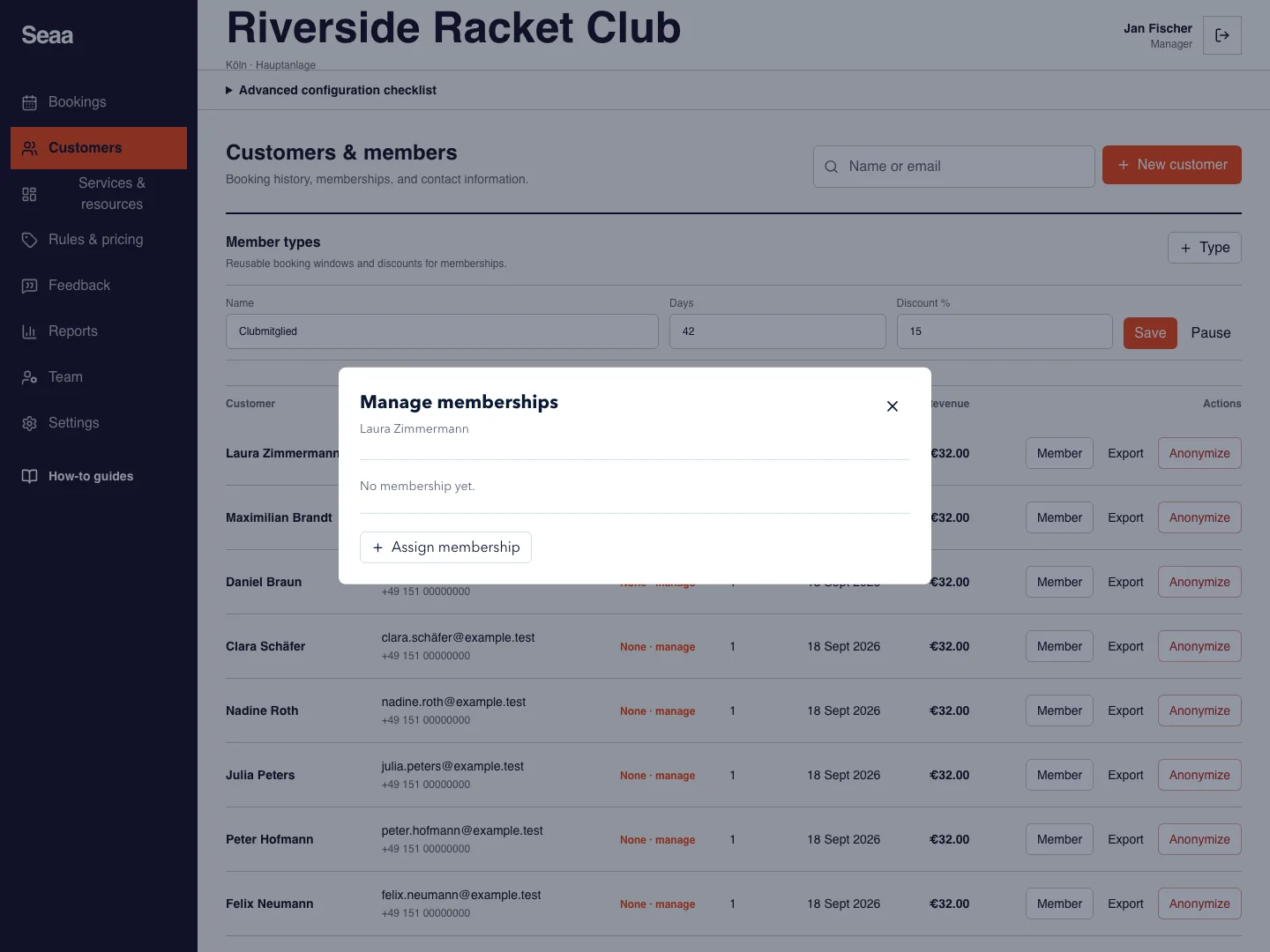
In Customers, open Member types. Create a type with a name, booking window in days, and discount percentage.
Find the customer and open Manage memberships. Choose the member type and enter a membership number.
Set its start date, optional end date, and starting credit if appropriate, then Assign.
Review the assigned membership. Edit or deactivate it when benefits should change, and test member pricing with the matching customer account.
Check it worked
The customer shows the active membership with the intended dates and credit.
Good to know
A membership number or credit entry is not proof that money was received. Keep actual payments reconciled separately.
Reviewed 20 September 2026. Screenshots use fictional demo data; available actions depend on your role and enabled features.