Add a phone or walk-in booking
Keep reservations from other channels in the same calendar.
- Where to go
- Bookings → New booking
- Access
- Staff with access to this section
 View full size
Step by step
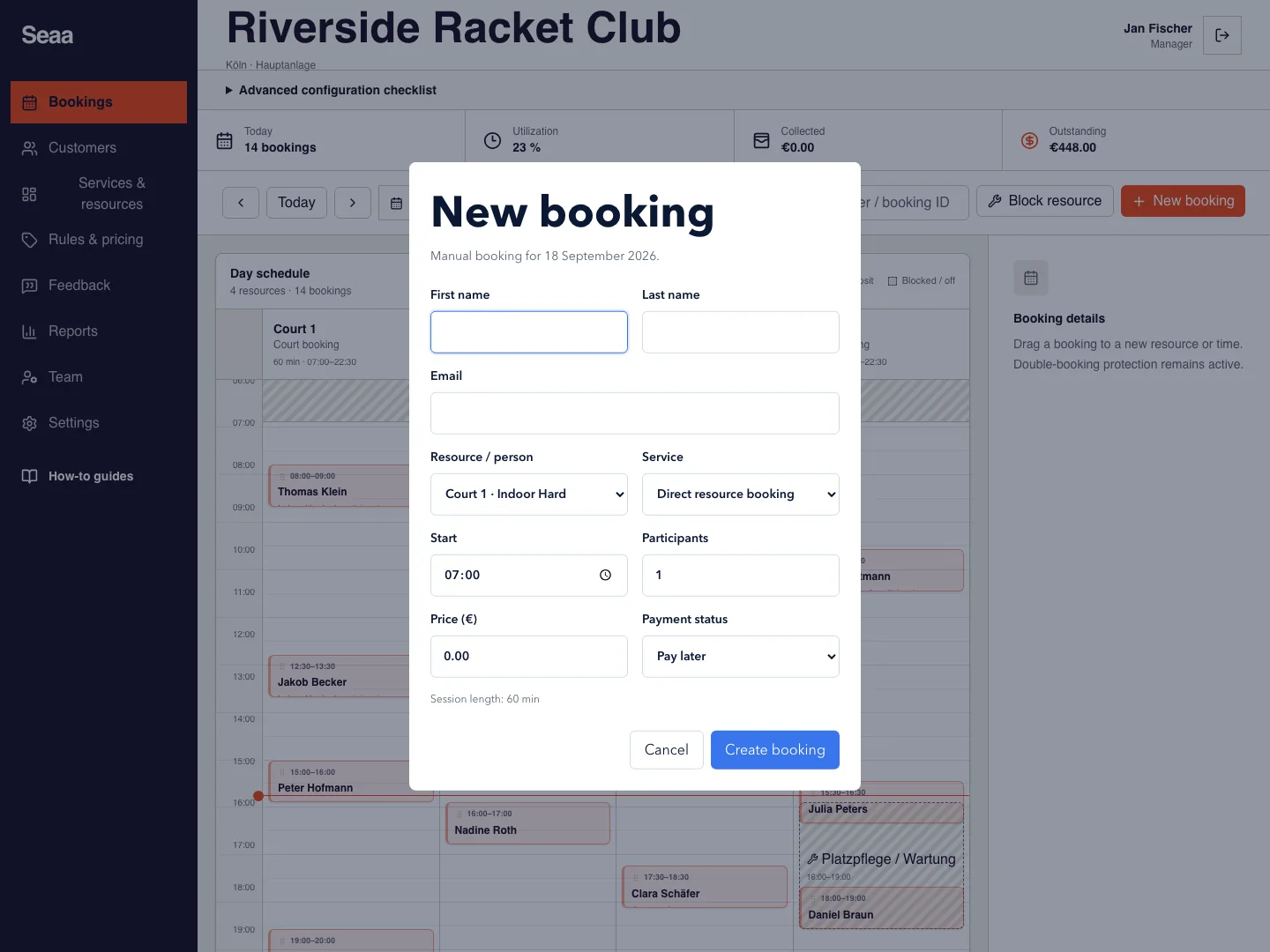
Choose the correct date in Bookings, then New booking. You can also select an available calendar time to start with that resource and time.
Choose the resource and service, then check the start time, displayed session length, and participant count.
Enter the customer’s name and contact details. Check the total and any payment fields before saving.
Create the booking and open it from the calendar. If payment arrives later, record it from the booking’s payment action.
Check it worked
The reservation occupies the correct calendar time and has a booking identifier.
Good to know
If the time is no longer available, refresh availability and choose another slot. Do not create a second entry before checking whether the first save succeeded.
Reviewed 20 September 2026. Screenshots use fictional demo data; available actions depend on your role and enabled features.