Set prices and bulk-edit rates
Create default, service, resource, and member rates.
- Where to go
- Rules & pricing → Pricing
- Access
- Owner or manager
 View full size
Step by step
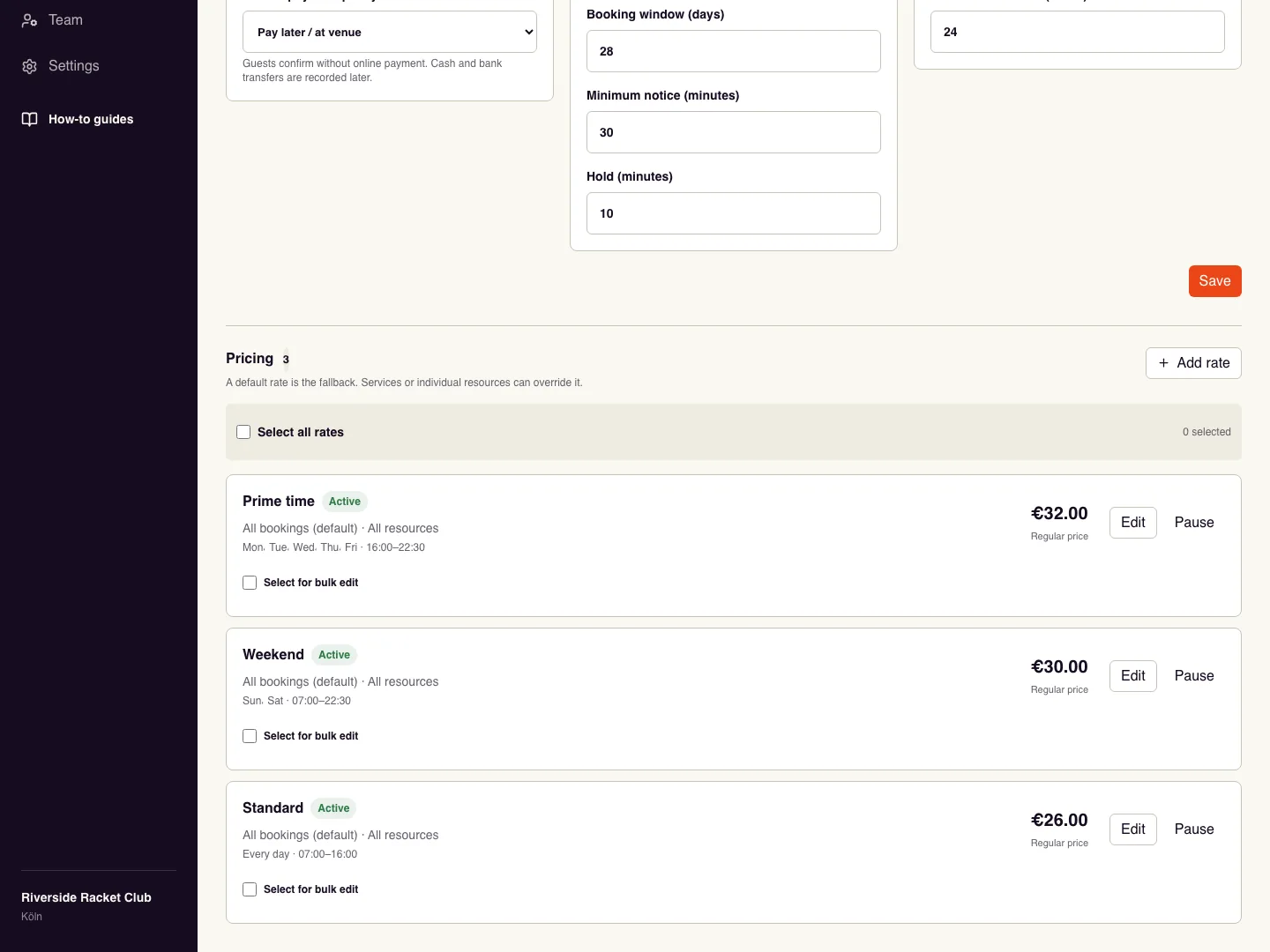
Open Rules & pricing and scroll to Pricing. Choose Add rate and name the rate clearly.
Leave service and resource unselected for a default rate, or select the service/resource this rate applies to. Set its active days and time range.
Enter the regular price and any member price or discount shown, then save. Use Edit to change a row or Pause to stop applying it.
For several rates, select their checkboxes and open Bulk edit prices. Choose a percentage change or exact price, review the preview, and Apply to selected.
Test the affected dates, services, and member status on the booking page before sharing the new prices.
Check it worked
The customer’s displayed total matches the intended rate for that selection.
Good to know
An exact bulk price changes regular prices only. For percentage changes, use the member-price option if you also want member prices adjusted.
Reviewed 20 September 2026. Screenshots use fictional demo data; available actions depend on your role and enabled features.