Create and organise services
Connect each service to the people or spaces that provide it.
- Where to go
- Services & resources → Services
- Access
- Owner or manager
 View full size
Step by step
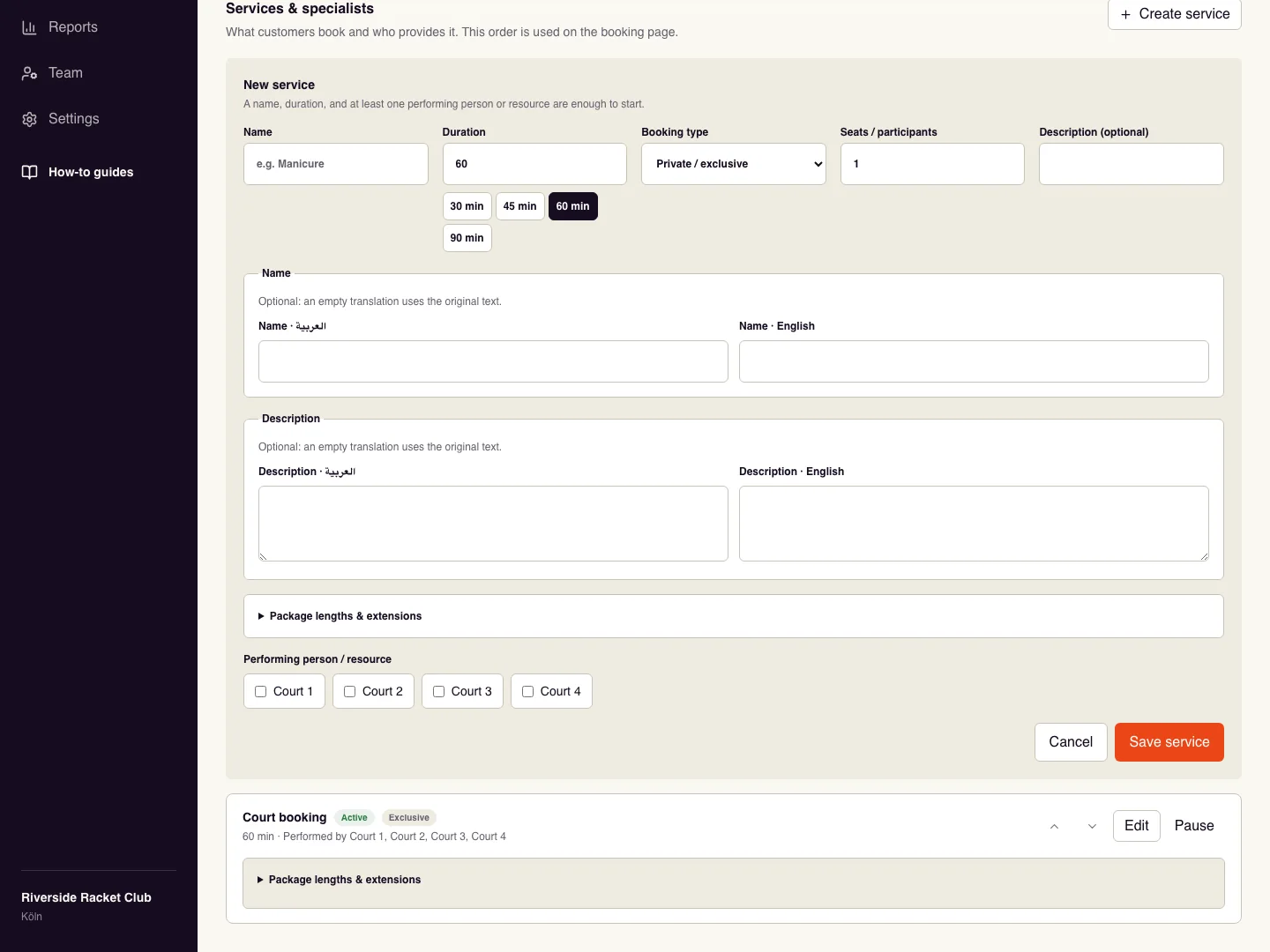
Create the resource first. In Services & resources, choose Create service.
Enter the service name in the customer languages, its duration, and a short description explaining what is included.
Choose Private / exclusive for a single booking occupying the resource, or Shared seats for customers reserving separate seats. Set the participant limit and select the performing resources.
Save service, then add its price in Rules & pricing. Use Duplicate to start an editable copy and review its resource links and price before saving. Use the ordering controls to arrange the public list. Pause a service when you want to stop new bookings for it.
Check it worked
Open the public booking page and confirm the service, duration, price, and resource choices.
Good to know
No available times? Confirm both the service and its linked resources are active, then check hours and pricing.
Reviewed 20 September 2026. Screenshots use fictional demo data; available actions depend on your role and enabled features.